The Language Learner's Guide to Setting Up WSL
Why a reading app asks you to install Linux, and the shortest path through WSL to GiellaLT and Voikko, with the commands written for your machine.
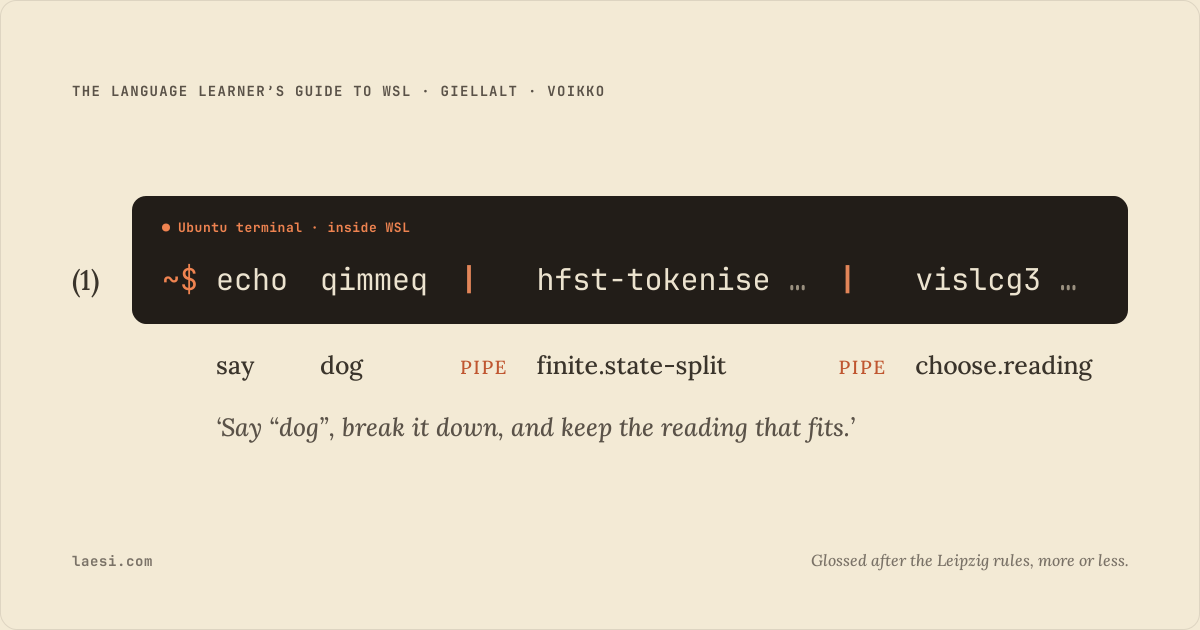
Sometime after deciding to learn Kalaallisut and reading your first page of it, this guide is going to ask you to install a Linux distribution inside Windows through WSL, the Windows Subsystem for Linux, add a nightly package repository maintained by a machine-translation project, pin an exact build of a finite-state toolkit, and then compile a language model analyser for half an hour.
That is an absurd thing for a reading app to ask of anyone, so it is worth explaining why this happens.
Laesi does not analyse morphology directly. It orchestrates tools that do. When you click a Swedish word and Laesi tells you böckerna is the definite plural of bok, that came from spaCy. When it does the same for Finnish, that is Voikko. Laesi's job is to drive those tools, combine their output with a dictionary, and keep track of what you know. For most language learners this is invisible: the app downloads a model in the background and you never think about it again. The people who built those tools are credited, with sources, at the end.
The languages where it stops being invisible are the ones where nobody had a commercial reason to build the tooling in the first place. Fewer than sixty thousand people speak Kalaallisut. Faroese, about twelve thousand more. There is no venture-funded NLP startup for the Sámi languages, and there is not going to be one.
What there is is GiellaLT. GiellaLT is an infrastructure project run out of UiT The Arctic University of Norway, with contributors across Sápmi and beyond. Since 2001 it has been hand-building rule-based morphological analysers for exactly the languages that statistical NLP has skipped. They are not scraped or trained; rather, they are written by computational linguists, rule by rule.
The friction is inherited, and it is inherited from the good part.
These analysers are extraordinary at what they do. A well-built transducer for Kalaallisut will take a single word encoding what English needs a full sentence for, and hand you back its root and every derivational affix in order. It does this deterministically, with no training data and no GPU, on a laptop, offline. Nothing else does that for these languages. The honest catch is coverage. A transducer only knows the words somebody wrote into it, and the people who build them say plainly that unknown words need a fallback. In Laesi, a word the analyser does not know is looked up as written instead.
But UiT and its partners distribute the analysers as research infrastructure, not as a consumer download: source repositories with autotools build systems, aimed at linguists and developers who already have a Unix toolchain. There is no installer for the analysers, though Divvun Manager installs some of GiellaLT's other tools, such as spellcheckers and keyboards. An installer was never the point. The point was that the language should have working computational support at all, published under open licences, rather than living behind somebody's API.
So here is the story: a guide that may take you two hours to step through, including half an hour of compiling, and then the analyser is yours. That is the trade. I think it is a good one, but I would rather you knew what you were signing up for before you started than halfway through step twelve.
What follows is the shortest path I know. Answer up to five questions and it will assemble a runbook for your machine, including the exact commands, in order, with failure modes. Every command block is tagged with the terminal it belongs in, because pasting a bash command into PowerShell is the single most common way this goes wrong.
You probably do not need this page. If you are learning Swedish, German, Spanish, French, Italian, Polish, Dutch, Portuguese, Russian, Ukrainian or Greek, which is most of Europe, Laesi installs its lemmatizer for you and none of this applies. This guide is for Finnish, the Sámi languages, Faroese, Kven, Meänkieli, Kalaallisut, Ojibwe, Irish and Old Norse.
Tell me about your machine
Everything below this point is generated from these answers, in your browser. Nothing you type here leaves it.
This decides whether you need WSL at all. macOS and Linux talk to these tools directly.
On Windows, these language tools only work inside WSL, which means Laesi has to run there too. That is a second install alongside your Windows one, and there is a way to make the two behave like a single app.
Laesi's Linux build comes in two versions, one for Intel and AMD and one for ARM, and on ARM building a model from source is not possible yet. Most PCs are Intel or AMD. On Windows, open Settings, then System, then About: System type says x64-based or ARM-based, and Ubuntu under WSL runs on the same processor. On Linux, uname -m says x86_64 or aarch64.
Pick as many as apply. If you are going to build from source eventually, tick it now. The order of installation matters, and doing it in the wrong order creates a package conflict that is annoying to unpick.
This sets the repository name and the folder Laesi will look in. You can come back and do a second language later; the toolchain steps only need doing once.
Paths and versions
… 0 of 0 done
This runbook is written from a few questions about your machine, and the questions need JavaScript. Without it, this is the default: Windows, with Laesi set up inside WSL, building Kalaallisut from source.
Get yourself a Linux
~14 min01Turn on WSL and install Ubuntu 24.04
Open the Start menu, type PowerShell, right-click it and choose Run as administrator. This one command switches on the Windows features WSL needs, fetches the Linux kernel, and installs Ubuntu 24.04.
Name the release rather than taking the default. A bare wsl --install gives you whichever Ubuntu is current under the plain name Ubuntu, and this guide is tested against 24.04. Naming it also means every later command on this page knows exactly which Linux it is talking to.
wsl --install -d Ubuntu-24.04
A restart, if WSL was not already switched on. If Ubuntu does not open on its own afterwards, run the same command again: the first run may only have switched WSL on. Then Ubuntu opens in its own window and asks you to invent a UNIX username and password. They belong to this Linux only and have nothing to do with your Microsoft account. The password stays invisible while you type it. That is a Unix convention, not a broken keyboard.
If it goes wrong
It hangs at 0.0%Run wsl --install --web-download -d Ubuntu-24.04 instead. It downloads the image directly rather than through the Microsoft Store, which is the part that stalls.
There is no distribution with the supplied nameCanonical renames these now and then. Run wsl --list --online, find the 24.04 LTS entry, and put its name in the Paths and versions panel above. Every command on this page updates to match.
'wsl' is not recognizedYour Windows is older than WSL 2 allows. It needs Windows 10 version 2004 (build 19041) or later, or Windows 11. winver tells you which you have.
Virtualisation errorsVirtualisation is switched off in your BIOS or UEFI settings, or you are inside a virtual machine without nested virtualisation. Both have to be fixed outside Windows.
02Make it the default, and check it is WSL 2
If you already had a Linux under WSL, the first line makes sure a bare wsl opens the new one. The second confirms the version. WSL 1 and WSL 2 are different enough that the wrong one will waste an afternoon.
wsl --set-default Ubuntu-24.04
wsl -l -v
A small table with an asterisk beside Ubuntu-24.04 and a 2 in the VERSION column. If it says 1, run wsl --set-version Ubuntu-24.04 2 and give it a few minutes.
03Work out where you actually are
From here on almost everything happens inside Ubuntu, which is, for practical purposes, a second computer with its own filesystem. Open it from the Start menu, where current versions of WSL list it as Ubuntu-24.04, or type wsl in any terminal. Every orange-tagged block below belongs in that window.
cd ~
pwd
/home/ followed by the username you just made. That is your Linux home directory, and it is where everything in this guide belongs.
/mnt/c/. Your Windows drives are visible from Linux there, and it is very tempting to build somewhere you can also see from Explorer. Resist it. That mount speaks a network protocol, the compiler performs tens of thousands of tiny reads, and the build runs many times slower. Windows line endings can also quietly corrupt GiellaLT's shell scripts. Stay in ~.Prepare the system
~3 min04Bring the package index up to date
A fresh Ubuntu image is usually a few weeks behind, and on WSL its package list can start out empty. Bring it up to date before installing anything, so every later install resolves against an accurate picture of what is available.
sudo apt-get update
sudo apt-get upgrade -y
Possibly a long list of upgrades on a fresh image. Let it finish.
Put Laesi inside Ubuntu
~23 min05Export your profile from the Windows app first
Skip this if you are starting fresh. Nothing later in the guide depends on it.
If you have been using Laesi on Windows, your books and vocabulary travel as a single file, and now is the moment to make it. Open Laesi from the Start menu as usual. Open the profile menu, top right, choose Manage Profiles, and press Export on your profile's row. Pick what to include, and save the .laesi-profile file into your Downloads folder. Then quit Laesi completely.
A .laesi-profile file in Downloads, named after your profile and today's date.
06Download the Linux build
Laesi ships a .deb for Linux, and that is the one you want, even though you are sitting at a Windows machine. Download it in your usual Windows browser from the link in your order confirmation, and only from there. It lands in your Downloads folder like anything else.
Keep the Windows version installed as well. It is not redundant: in a few steps it becomes the window you actually look at.
A file named something like Laesi_0.1.18_amd64.deb. Put the exact name in the Paths and versions panel above, along with your Windows username, and the next command fills itself in.
07Install it inside Ubuntu
Ubuntu can see your Windows drive at /mnt/c/. Reading one file across that boundary is fine; it is sustained compiling that crawls, which is why the build later on stays out of there.
Use apt-get rather than dpkg. Apt pulls in the libraries the package depends on, where dpkg -i would install it and then complain that they are missing.
# your Windows Downloads folder, seen from Ubuntu
ls "/mnt/c/Users/YourName/Downloads/"*.deb

sudo apt-get install -y "/mnt/c/Users/YourName/Downloads/Laesi_0.1.18_amd64.deb"
A couple of hundred megabytes of dependencies, most of them the window toolkit the desktop half of Laesi needs, then a clean install. Nothing opens, and that is expected.
sudo at the top of this page applies here too. Install only the .deb you downloaded yourself, from the link in your order confirmation.If it goes wrong
ls: cannot access '/mnt/c/Users/…'Your Windows username is not quite what you assumed. Run ls /mnt/c/Users/ to see the real list, and copy the name exactly.
N: Download is performed unsandboxed as rootHarmless. Apt prefers to read packages as a restricted user, cannot do that on the Windows drive, and is telling you it read the file as root instead. The install still goes through.
dependency problems - leaving unconfiguredYou used dpkg -i. Run sudo apt-get -f install to pull in what is missing, then carry on.
08Find the server inside the package
Here is the part that is not obvious, and it is the crux of the whole arrangement.
The package contains two programs: a desktop app, and the server that does all the real work, meaning the database, the dictionaries and the lemmatizers. The desktop half does not reliably draw a window under WSL. That is a WSL graphics problem rather than a Laesi one, and instead of fighting it we are simply not going to use that half. The server half runs perfectly.
So find the server. You will hand its path to a launcher script in a moment.
find /usr -name 'laesi-server*' -type f 2>/dev/null
One path, something like /usr/bin/laesi-server. Put it in the Paths and versions panel above; the script in the next step is written around it.
If it goes wrong
Nothing comes backdpkg -L laesi lists every file the package installed. The server is the large executable, not the small one called just laesi.
09Write the launcher
This is the piece that makes two installs behave like one application, and it rests on something Laesi already does on purpose.
When the desktop app starts, the first thing it does is knock on 127.0.0.1:9876 and ask whether a Laesi server is already answering there. If one is, it attaches to that server instead of starting its own, and when you close the window it leaves that server running rather than killing something it did not start. WSL 2 forwards localhost between Windows and Ubuntu. So if the Ubuntu server is up first, the Windows window simply finds it.
The script below does exactly that, in order: check whether the server is already answering, start it inside Ubuntu if not, wait until it responds, then open the Laesi window. Paste the whole block. It writes the file for you rather than asking you to create one by hand.
@'
# start-laesi.ps1
# Starts the Laesi server inside Ubuntu, then opens the Laesi window on Windows.

$Distro    = "Ubuntu-24.04"
$ServerBin = "/usr/bin/laesi-server"
$Health    = "http://127.0.0.1:9876/api/v1/health"

function Test-Laesi {
    try { return (Invoke-WebRequest -Uri $Health -UseBasicParsing -TimeoutSec 2).StatusCode -eq 200 }
    catch { return $false }
}

if (-not (Test-Laesi)) {
    # The server runs in the foreground of a hidden wsl.exe. WSL shuts a
    # distribution down once nothing on the Windows side is attached to it,
    # so this process has to stay open for as long as the server does.
    $inner = "exec '$ServerBin' >/tmp/laesi-server.log 2>&1"
    Start-Process -FilePath "wsl.exe" -ArgumentList "-d $Distro -- bash -lc `"$inner`"" -WindowStyle Hidden

    $deadline = (Get-Date).AddSeconds(60)
    while (-not (Test-Laesi)) {
        if ((Get-Date) -gt $deadline) {
            $msg = "The Laesi server did not answer within 60 seconds.`n`nOpen Ubuntu and run:  cat /tmp/laesi-server.log"
            (New-Object -ComObject WScript.Shell).Popup($msg, 0, "Laesi", 48) | Out-Null
            exit 1
        }
        Start-Sleep -Milliseconds 500
    }
}

$exe = @(
    "$env:LOCALAPPDATA\Programs\Laesi\Laesi.exe",
    "$env:LOCALAPPDATA\Laesi\Laesi.exe",
    "$env:ProgramFiles\Laesi\Laesi.exe"
) | Where-Object { Test-Path $_ } | Select-Object -First 1

if ($exe) { Start-Process $exe } else { Start-Process "http://127.0.0.1:9876/" }
'@ | Set-Content -Path "$env:USERPROFILE\start-laesi.ps1" -Encoding UTF8
A file at %USERPROFILE%\start-laesi.ps1 with your distribution and server path already filled in. Nothing runs yet.
If it goes wrong
The server starts, then disappears a few seconds laterWSL shuts a distribution down once nothing on the Windows side is attached to it, and takes background processes with it. The script avoids that by running the server inside a hidden wsl.exe that stays open for as long as the server does. If you changed that line to start the server in the background and return, that is the cause.
Nothing happens at all when you click the shortcutRun powershell -ExecutionPolicy Bypass -File "$env:USERPROFILE\start-laesi.ps1" in an ordinary PowerShell window to see the error the hidden window was swallowing.
10Give it a shortcut
Windows will not run a .ps1 file from a double-click, by design. A shortcut that calls PowerShell explicitly gets around that without weakening any system-wide setting. This one lands on your desktop, wearing the Laesi icon if it can find one.
$desk = [Environment]::GetFolderPath("Desktop")
$s = (New-Object -ComObject WScript.Shell).CreateShortcut("$desk\Laesi (WSL).lnk")
$s.TargetPath       = "powershell.exe"
$s.Arguments        = "-ExecutionPolicy Bypass -WindowStyle Hidden -File ""$env:USERPROFILE\start-laesi.ps1"""
$s.WorkingDirectory = "$env:USERPROFILE"

# borrow the Laesi icon, if the Windows app is where we expect
$exe = @(
    "$env:LOCALAPPDATA\Programs\Laesi\Laesi.exe",
    "$env:LOCALAPPDATA\Laesi\Laesi.exe",
    "$env:ProgramFiles\Laesi\Laesi.exe"
) | Where-Object { Test-Path $_ } | Select-Object -First 1
if ($exe) { $s.IconLocation = $exe }

$s.Save()
Laesi (WSL) on your desktop. That is what you open from now on.
-ExecutionPolicy Bypass applies to this one script, launched from this one shortcut. Nothing else on the machine changes.If it goes wrong
Unable to save shortcutYour desktop folder has moved, which OneDrive likes to do. Change the first line to $desk = "$env:USERPROFILE", run the block again, and drag the shortcut wherever you want it.
11Start it for the first time
Double-click Laesi (WSL). A PowerShell window flickers past, there is a pause while the server wakes up, and then Laesi opens.
What you are looking at is the Windows app. Everything behind it, from the database and your books to every lemmatizer you are about to install, is running inside Ubuntu.
A screen asking you to name a profile and pick a language. The first launch is slower than the ones after it.
wsl --terminate Ubuntu-24.04 in PowerShell.If it goes wrong
A message says the server did not answer within 60 secondsOpen Ubuntu and run cat /tmp/laesi-server.log. The last few lines say why it stopped.
The window opens, but the page is blank or cannot connectClose it and click the shortcut again; the second attempt finds a warm server. If it happens every time, check that no other copy of Laesi is open on Windows.
12Bring your books and vocabulary across
Skip this if you did not export anything at the start of this stage.
Open the profile menu, top right, choose Manage Profiles, then Import Existing Profile at the bottom, and pick the .laesi-profile file. Before anything is committed you get a summary of what is inside: how many words, books and reading sessions. Choose Add to an Existing Profile to fold it into the one you just made, or Add as a New Profile to keep it separate. Merging never overwrites. Where something already exists, it is left alone and counted as a skip.
An import summary telling you what came in and what was already there.
Build the language analyser
~53 min13Download the Apertium nightly script and read it
Ubuntu ships hfst 3.16.0 and cg3 1.4.6. Current GiellaLT language repositories are developed against newer versions of both, and some need them: lang-kal's makefile passes hfst-lexc a -Wall flag that only hfst 3.17.1 and later read correctly. Apertium, the rule-based machine translation project, maintains nightly builds of the whole family, and that is the quickest route to current versions.
This is the script the warning at the top of this page was about, so this step only downloads it and opens it for reading. Running it is the next step, on its own.
# download it first
wget https://apertium.projectjj.com/apt/install-nightly.sh -O /tmp/install-nightly.sh

# read it before you run it (press q to leave)
less /tmp/install-nightly.sh
What the script does, and what you should see when you read it: it writes /etc/apt/sources.list.d/apertium.list, installs Apertium's signing key, and sets pin priority 1001 in /etc/apt/preferences.d/apertium.pref, so apt prefers nightly builds wherever they overlap with Ubuntu's. If you see it fetching anything from somewhere other than apertium.projectjj.com, stop here.
/apt/. A second script at /osx/ copies Mac builds of the same tools into /usr/local/. Run that one on Linux and those copies sit in front of the real ones on your PATH, so hfst-tokenise, vislcg3 and the rest stop working, along with their libraries and headers. If it has already happened, the recovery is under the next step, and it is not a pleasant afternoon.curl --insecure, which skips the check that the server's certificate is genuine, and it adds the repository over plain http. Apt still checks every package against that key, so the weak point is the key download itself: someone able to tamper with your connection at that moment could slip in a key of their own. The key is also trusted for every repository on the system, not only Apertium's, and the pin priority of 1001 lets Apertium's packages replace Ubuntu's wherever the two overlap. Run this step on a network you trust, not on public Wi-Fi.14Run the script you just read
Only once you have read it. This is the one command in the guide that runs a downloaded script as root, which is why it has a step to itself.
sudo bash /tmp/install-nightly.sh
A few lines of output and no errors. The script refreshes apt's package lists itself, quietly, and it is safe to run twice.
If it goes wrong
hfst-tokenise or vislcg3 says "cannot execute binary file: Exec format error"You ran the macOS script. Only run this if that is genuinely what happened. It deletes the contents of /usr/local, and on a machine where you have installed other things by hand it takes them too.sudo rm -rf /usr/local/bin/* /usr/local/lib/* /usr/local/include/*sudo rm -rf /usr/local/share/{aclocal,pkgconfig,apertium*,libdivvun,lttoolbox,sgml,xml}/*sudo rm -rf /usr/local/share/emacs/site-lisp/*
Then use the /apt/ address.
15Install the toolchain
apertium-all-dev is the umbrella package: cg3 1.6.6 or newer, the hfst headers, vislcg3 and the rest. The second line is the standard autotools set, because every GiellaLT repository is an autoconf project. jq is only used by a cosmetic badge step in the documentation part of the build. Without it you get a harmless jq: command not found, so it is easier just to have it.
sudo apt-get update
sudo apt-get install -y \
    apertium-all-dev \
    build-essential autoconf automake libtool m4 pkg-config \
    git wget jq locales

# which hfst did that give you?
hfst-lexc --version
A few hundred megabytes and a couple of minutes, then a version number. On a fresh system it already reads 3.17.1 or newer, because the nightly repository is in charge now, and the next step finds nothing to do. If it says 3.16.0, Ubuntu's own hfst got there first, and the next step swaps it out.
apertium-all-dev. Without the nightly repository in place, this line quietly installs it, along with Ubuntu's hfst and cg3, which is exactly the tangle the next step exists to undo.16Swap out Ubuntu's hfst, if it got there first
On a fresh system this step changes nothing; the command checks first and says so. It exists for machines where Ubuntu's hfst arrived before the nightly repository did, perhaps from a ready-made model or from running the toolchain line too early.
That leftover is surprisingly hard to move. Ubuntu's hfst, libhfst-dev and python3-hfst each depend on libhfst55 at one exact version, so moving to the nightly build means swapping the whole set at once, and apt's resolver tends to give up rather than work that out. Naming every installed member of the set, at one version, in one command, hands it the answer, and apt brings the nightly library along with them. The matching OpenFST move, libfst22 to libfst26, follows on its own.
Nightly version strings change every few days, so the command asks apt which one it is offering today instead of trusting a number printed on a web page.
if dpkg -s libhfst55 >/dev/null 2>&1; then
  # which hfst is the nightly repository offering today?
  V=$(apt-cache policy hfst | awk '/Candidate:/ {print $2}')
  PKGS="hfst=$V libhfst-dev=$V"
  dpkg -s python3-hfst >/dev/null 2>&1 && PKGS="$PKGS python3-hfst=$V"
  echo "Swapping Ubuntu's hfst for $V"
  sudo apt-get install -y $PKGS
else
  echo "No Ubuntu hfst in the way. Nothing to swap."
fi

# either way, confirm
hfst-lexc --version    # 3.17.1 or newer
vislcg3 --version      # 1.6.6 or newer
Either Nothing to swap, or a version string ending in ~noble1 and apt replacing a handful of packages. Then, either way, hfst-lexc reporting 3.17.1 or newer. That last check decides whether the build in a few steps will succeed.
If it goes wrong
Unable to correct problems, you have held broken packagesSomething else installed still wants libhfst55. apt-cache rdepends --installed libhfst55 names it. Add that package to the list at the same version, or remove it if you do not need it.
Version '…' for 'python3-hfst' was not foundThe nightly repository builds that one at a different version. Laesi carries its own copy of the Python binding, so you can remove Ubuntu's with sudo apt-get remove python3-hfst and run this step again.
The version it swaps to does not end in ~noble1Apt is not seeing the nightly repository, so it offered Ubuntu's own hfst back. Check that /etc/apt/sources.list.d/apertium.list exists, run sudo apt-get update, and try this step again.
17Set the locale
GiellaLT's Perl helper scripts complain loudly about a missing UTF-8 locale on a fresh Ubuntu image. The warnings are harmless, but they bury real errors in noise, and you want to be able to spot a real error during a thirty-minute build.
sudo locale-gen en_US.UTF-8
sudo update-locale LANG=en_US.UTF-8
Silence from Perl later on, which is the point.
18Clone the three repositories
GiellaLT language repositories expect giella-core and shared-mul as siblings in the same parent directory: not submodules, not system packages. lang-kal's own autogen.sh will fetch them if they are missing, but cloning them yourself gives you a checkout you can pin or roll back when an upstream change breaks something.
cd ~
git clone https://github.com/giellalt/giella-core.git
git clone https://github.com/giellalt/shared-mul.git
git clone https://github.com/giellalt/lang-kal.git
~/
├── giella-core/
├── shared-mul/
└── lang-kal/
Three directories, side by side. The layout is the dependency; get it wrong and nothing downstream works.
If it goes wrong
Repository not foundCheck the name at github.com/giellalt. Repositories are named by ISO 639-3 code, which is often not the code you would expect: Irish is lang-gle, Kalaallisut is lang-kal, North Sámi is lang-sme.
19Configure giella-core first
Skipping this produces the most baffling error in the process, so it gets a step of its own. lang-kal's configure script looks for giella-core/scripts/gt-version.sh, with no .in suffix. That file is not in the repository. Autoconf generates it from a template when giella-core configures itself. Miss this and the language build dies on a missing file, with nothing to suggest where it should have come from.
cd ~/giella-core
./autogen.sh
./configure
No need to run make; the language repositories only want the generated scripts.
shared-mul follows the same pattern. lang-kal may not use it for every target, but if its configure step complains about shared-mul, run the same two commands in ~/shared-mul/.If it goes wrong
scripts/gt-version.sh: No such file or directoryThis is that error, turning up later during lang-kal's configure. giella-core has not been configured. Run ./autogen.sh && ./configure in ~/giella-core/ and try again.
20Configure and build the language
Ready-made builds of some of these analysers exist, but they do not reliably include the two files Laesi works best with: the tokeniser (.pmhfst) and the constraint grammar (.cg3). Building your own is the dependable way to get both.
Two flags earn their place. --enable-tokenisers produces tokeniser-disamb-gt-desc.pmhfst, which is what lets Laesi analyse a word in the context of its sentence rather than in isolation: the difference between a list of possible readings and the right one. --enable-morpher produces the segmenter files, meaning the root plus the full derivational chain rather than the root alone. For a polysynthetic language that is the entire point. A single word can carry what English needs a full clause for, and root-only output throws away everything interesting about it.
There is a third flag you will see mentioned, --enable-analyser-tool, which packs the analysis pipeline into an archive for Divvun's own tools and needs their gtgramtool installed. Laesi pipes hfst-tokenise into vislcg3 directly and never touches it, so leave it off.
cd ~/lang-kal
./autogen.sh
./configure --enable-tokenisers --enable-morpher
make -j$(nproc)
Twenty-five to thirty-five minutes on a typical laptop. Parallel make is safe here; the dependencies are well-formed. Go and do something else. There is nothing to watch.
hfst-lexc and a lowercase -a flag. hfst-lexc --help documents only the uppercase -A, but the program accepts both. It is a documentation gap in hfst, not a problem with your build.If it goes wrong
hfst-lexc: Unknown option '-a'You are still on Ubuntu's hfst 3.16.0. Go back to the step that swaps out Ubuntu's hfst, then confirm that hfst-lexc --version reports 3.17.1 or newer.
The build stops with Killed, or Error 137The machine ran out of memory, which parallel builds do on smaller laptops. Set Parallel make jobs in the panel above to 2 and run the make line again. It picks up where it stopped.
The build has been running for hours and the disk is thrashingYou are building under /mnt/c/. Move the repositories into ~ and start again; it is faster to redo it than to wait.
make: *** No rule to make targetUsually the sibling layout. Confirm that giella-core, shared-mul and lang-kal all sit directly inside ~.
21Confirm the files exist
Three file types, three jobs. .hfstol is the compiled transducer itself. .pmhfst is the tokeniser that feeds it whole sentences. .cg3 is the constraint grammar that sorts out the result.
find ~/lang-kal -name '*.hfstol' -o -name '*.pmhfst' -o -name '*.cg3' | sort
For lang-kal with both flags on, roughly: analyser-disamb-gt-desc.hfstol (~15 MB), analyser-gt-desc.hfstol (~14.7 MB), analyser-gt-norm.hfstol (~14.4 MB), analyser-learner-gt-norm.hfstol (~13.4 MB) and generator-gt-norm.hfstol (~14 MB) under src/fst/, plus tokeniser-disamb-gt-desc.pmhfst under tools/tokenisers/ and disambiguator.cg3 under src/cg3/.
If it goes wrong
No .pmhfst anywhere--enable-tokenisers did not take. Run configure again with both flags, then make; the second build is much faster than the first.
22Run the exact pipeline Laesi runs
This is the moment worth waiting for. What follows is exactly the pipeline Laesi runs internally: split the sentence into tokens, run each one through the transducer, then let the constraint grammar throw away the readings the context rules out. The sentence below means “the dog is big”.
cd ~/lang-kal
echo "Qimmeq angisuuvoq." | \
    hfst-tokenise --giella-cg tools/tokenisers/tokeniser-disamb-gt-desc.pmhfst | \
    vislcg3 --grammar src/cg3/disambiguator.cg3
Constraint-grammar output: "<Qimmeq>" on its own line, then an indented reading for "qimmeq" ending in N Abs Sg, then "<angisuuvoq>", whose reading runs through a chain of derivation tags and ends in V Ind 3Sg. Space-separated tags, one block per word. If you are seeing analyses, the build is good.
If it goes wrong
hfst-tokenise: command not foundThe runtime is not on your PATH. It comes with apertium-all-dev, so check that step completed.
Output appears, but every reading is a question markThe tokeniser ran and the analyser recognised nothing. Usually a wrong file path: check you are in ~/lang-kal and that both paths in the command point at files that exist.
23Copy the files into Laesi
One detail catches everybody: the folder is named with the GiellaLT code, not Laesi's code for the same language. Kalaallisut is kal/, not kl/. North Sámi is sme/, not se/. The folder name matches the upstream repository, which is the convention that stays stable across the whole GiellaLT ecosystem. For Kalaallisut that means kal/, while the app calls the language kl everywhere else.
Laesi keeps its models under ~/.laesi/models/ on every platform, so the command goes straight there and copies the three files Laesi reads: the analyser, the tokeniser and the disambiguator.
# Laesi keeps its models under ~/.laesi on every platform
DEST="$HOME/.laesi/models/giellalt/kal"
mkdir -p "$DEST"

# copy the three files it reads
cd ~/lang-kal
cp src/fst/analyser-gt-desc.hfstol \
   tools/tokenisers/tokeniser-disamb-gt-desc.pmhfst \
   src/cg3/disambiguator.cg3 \
   "$DEST/"
ls "$DEST"
The names of the three files, in their new folder. If an older Laesi install left a folder named with the app's own code, it is renamed the next time the Laesi server starts; you do not need to clean up by hand.
If it goes wrong
cp: cannot stat …One of the three files is not where the command expects it. Check that you are in ~/lang-kal, and that the step that confirms the files exist listed all three.
Hand it over to Laesi
~3 min24Tell Laesi to look again
Open Laesi, go to Model Manager, find Kalaallisut and press Validate. It checks three things in order: that every file it expects is present; that each one really is a transducer rather than, say, an HTML error page saved with a convincing extension; and finally it pushes a real word through and confirms an analysis comes back.
The row shows Installed or User Managed, and clicking a word in the reader starts returning the full analysis: root, derivational chain and tags.
If it goes wrong
The card says it is not available on WindowsThat is the Windows app running on its own, not the one attached to Ubuntu. Close it and open Laesi the way that connects it to Ubuntu, which is the Laesi (WSL) shortcut if you made one with this guide.
Validate cannot find the filesQuit Laesi completely and open it again, so the server starts fresh and finds the newly installed engine. On Windows that means closing the window, running wsl --terminate Ubuntu-24.04 in PowerShell, and then using the shortcut.
25Why any of this works
Worth understanding, because it is the join that holds the whole arrangement together.
Every lemmatizer you have just installed is a Linux program. The hfst Python bindings Laesi relies on have no release for any current Windows Python, and Voikko has no usable Windows library, which is why Laesi switches GiellaLT and Voikko off on native Windows instead of offering you a download that could not work. Inside Ubuntu they run as they were built to, and only something inside Ubuntu can talk to them.
So the server runs there, and the Windows app attaches to it over forwarded localhost rather than starting one of its own. The window is Windows. The database, the books and every piece of morphological analysis behind it are Ubuntu. Nothing has to bridge the gap, because the only thing crossing it is ordinary web traffic on port 9876.
Who actually made these tools
GiellaLT is developed at UiT The Arctic University of Norway by two research groups, Giellatekno and Divvun, and published under open licences. Moshagen and colleagues describe the whole infrastructure in a 2023 paper, and each language's own authors are listed in its repository.
The Kalaallisut analyser is the work of Oqaasileriffik, the Greenland Language Secretariat in Nuuk, built together with Giellatekno. Per Langgård and Trond Trosterud are among its central developers, and Langgård wrote the constraint grammar rules that pick the right reading, with advice from Trosterud, Eckhard Bick and Tino Didriksen.
Two engines sit underneath every GiellaLT analyser. HFST, the Helsinki Finite-State Technology toolkit from the University of Helsinki, runs the transducers. VISL CG-3, developed by GrammarSoft and VISL at the University of Southern Denmark, with Tino Didriksen and Eckhard Bick, applies the constraint grammar.
Apertium, the open machine-translation project, publishes the nightly packages that make the build possible, maintained by Tino Didriksen. Voikko, the Finnish analyser, is a free-software project by Harri Pitkänen and contributors.
Laesi orchestrates their work; it does not replace it.
If you get stuck
Most steps have an If it goes wrong panel covering the specific failures we hit. If yours is not in there, write to support@laesi.com and we will try to help.
Join the Laesi Discord
If you learn languages by reading native content, or want to start, there is a Laesi Discord community for exactly that. No purchase necessary. Come tell us what you are reading, or what you are building.
Read what you actually want to read.
Laesi is a one-time purchase for Mac, Windows, and Linux: all 60+ languages, free updates for life.